How to Cut Out and Remove the Middle Part of a Video:
- Open the Online Video Removal Tool
Navigate to AudioTrimmer's free online video cutter tool to get started. The tool works entirely in your browser, so there's no software to download or install. It supports all popular video formats including MP4, AVI, MOV, WMV, FLV, and more.
- Select Your Video File
Choose the video file you want to edit from your computer, tablet, or smartphone. The tool supports videos up to 250MB in size.
Here's where our tool shines: As soon as you select your file, the video loads instantly in your browser so you can start making edits right away! You'll immediately see a preview of your video along with a timeline slider below it. While you're watching and selecting which parts to remove, the file is being uploaded to our server in the background—no waiting around!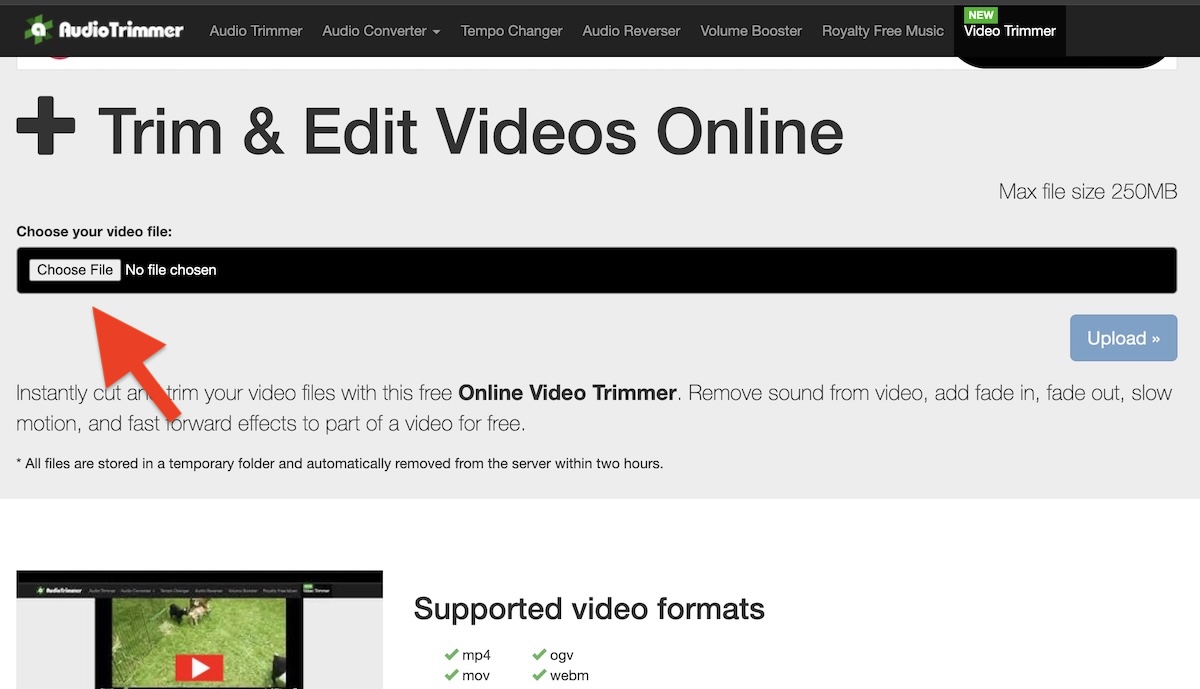
Tip: This instant preview feature means you can start working on your edits immediately without waiting for upload progress bars. The background upload happens seamlessly while you work, making the editing process much faster and more efficient.
- Switch to "Remove" Mode
Once your video is loaded, look for the Mode button near the top of the editor. Click it to switch from the default "Keep" mode to "Remove" mode. This is a crucial step that many users miss!
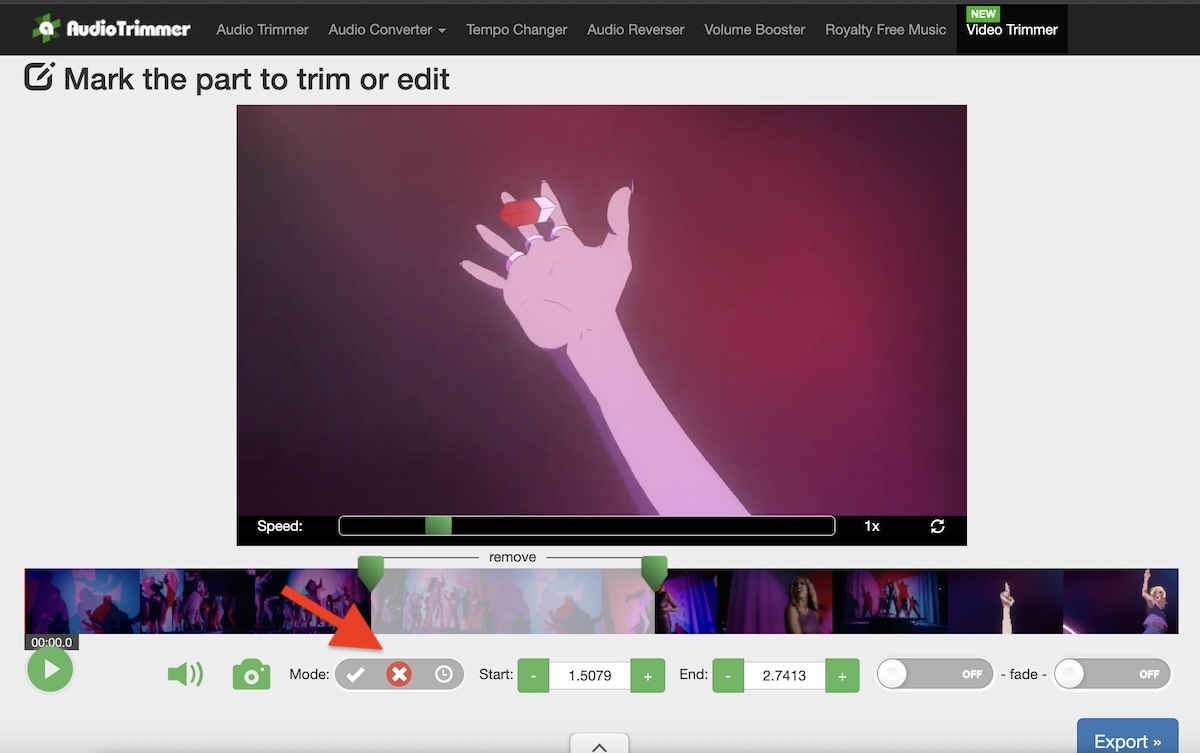
In "Remove" mode, the section you select with the sliders will be deleted from your final video, and the remaining parts will be seamlessly joined together. In "Keep" mode (the default), only the selected portion would be kept, and everything else would be removed.
- Select the Unwanted Section
Now comes the fun part! Use your mouse or finger to click and drag the slider handles on the timeline to mark the exact section of video you want to remove. You'll see two handles:
- Start handle: Marks where the unwanted section begins
- End handle: Marks where the unwanted section ends
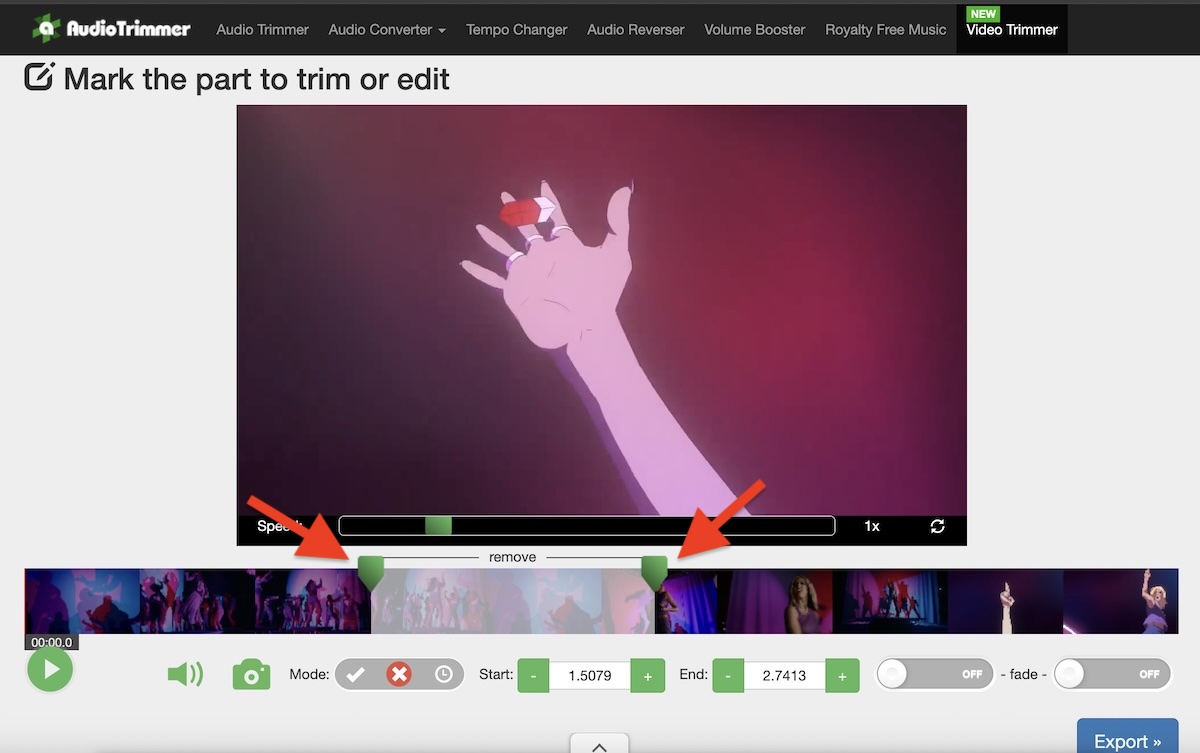
As you drag the handles, the video will play from that point so you can see exactly what you're selecting. The selected area will be highlighted in a different color on the timeline.
Pro Tips for Precise Selection:- Use the plus (+) and minus (-) buttons next to the time displays for frame-by-frame precision
- Click anywhere on the timeline to jump to that point in the video
- Watch the time counter to see exactly when your selection starts and ends
- Preview your selection by playing the video before exporting
- Cut and Remove the Selected Part
Once you're happy with your selection, click the large "Export" button. In Remove mode this will actually delete the selected section from your video.
The tool will process your video and automatically stitch together the remaining parts. This usually takes between 30 seconds to a few minutes depending on the length and quality of your video. You'll see a progress indicator while the processing happens.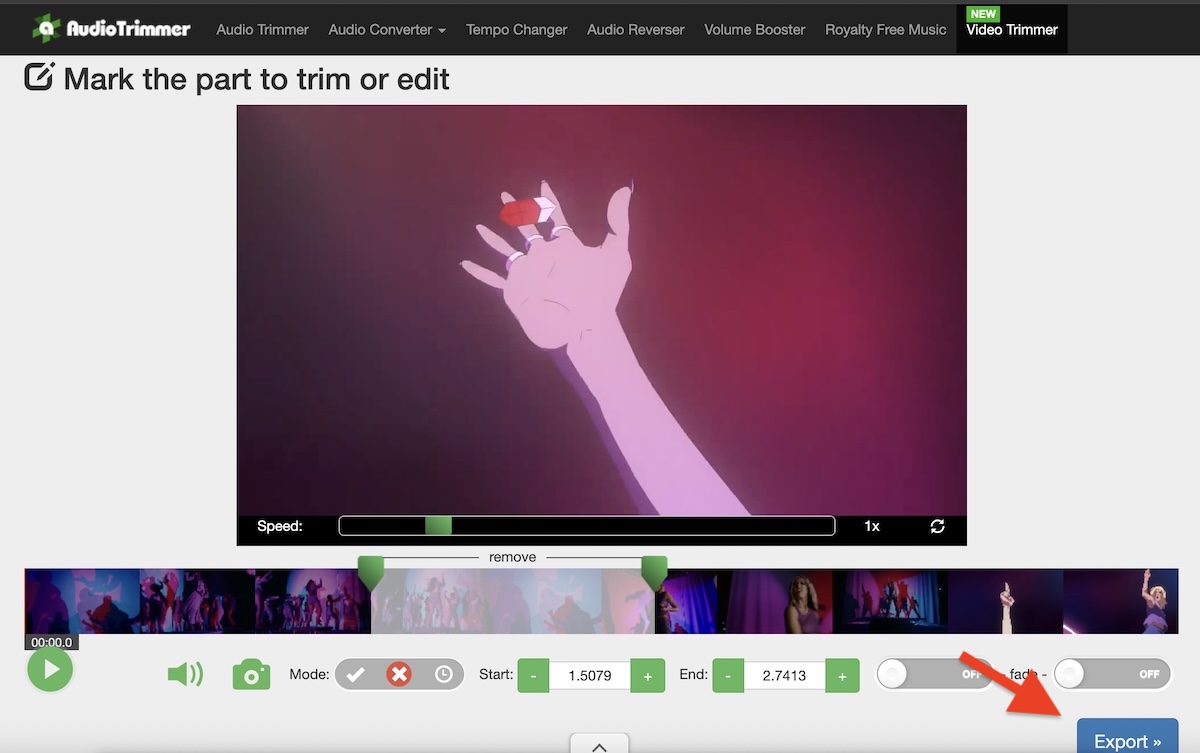
The best part? The transition between the two remaining sections will be seamless with no gaps or glitches. The audio will also stay perfectly in sync with the video.
- Download Your Edited Video
After processing is complete, you'll see a download link appear. Click it to save your newly edited video to your device. The output video will maintain the same quality and format as your original file.
Your edited video is now ready to share on social media, upload to YouTube, send to friends, or use in your projects!
Why Use Our Online Video Cutter?
Instant Preview - No Waiting
Unlike other video editors that make you wait for uploads to complete, our tool loads your video in your browser instantly. This means you can start selecting which parts to remove right away, while the upload happens seamlessly in the background. This innovative approach saves you valuable time and makes the editing process feel lightning-fast.
No Technical Skills Required
Our intuitive interface is designed for everyone, from complete beginners to experienced video editors. The simple slider-based selection system means you don't need to understand complex editing concepts or learn complicated software. If you can drag a slider, you can edit videos with our tool.
Works Everywhere
Whether you're on a desktop computer, laptop, tablet, or smartphone—on Windows, Mac, iOS, Android, or Linux—our tool works perfectly in any modern web browser. No compatibility issues, no platform restrictions.
Why Remove Parts of a Video?
There are countless reasons why you might need to cut out sections from your videos. Here are some of the most common scenarios where our video removal tool comes in handy:
Content Creation & Social Media
- Remove mistakes and bloopers: Cut out those awkward pauses, stumbles over words, or moments when you forgot your lines
- Delete dead air: Remove long silences or boring sections to keep your content engaging
- Edit out background interruptions: Remove sections where someone walked into frame, your phone rang, or a loud noise occurred
- Shorten videos for social media: Cut your video down to fit platform time limits (Instagram Reels, TikTok, Twitter, etc.)
- Remove watermarks or logos: Cut out sections with unwanted branding (though be mindful of copyright)
Privacy & Security
- Protect personal information: Remove moments where you accidentally showed your address, phone number, or other sensitive details
- Blur faces without complex editing: Simply cut out sections showing people who don't want to appear on camera
- Remove inappropriate content: Delete sections that aren't suitable for your intended audience
Professional & Business Use
- Edit presentations and webinars: Remove technical difficulties, off-topic discussions, or Q&A sections
- Create highlight reels: Cut out the less interesting parts to showcase the best moments
- Repurpose longer content: Turn a long video into multiple shorter clips by removing different sections
- Clean up screen recordings: Remove sections where you navigated menus or made mistakes
Personal & Family Videos
- Edit home videos: Remove shaky footage, accidental floor shots, or moments when the camera was accidentally recording
- Trim vacation videos: Cut out boring travel time or repetitive scenes
- Create memorable compilations: Remove filler content to keep only the best moments from events, parties, or celebrations
Common Questions About Removing Video Parts
Can I remove multiple sections from one video?
Yes! However, you'll need to remove sections one at a time. After removing the first unwanted section, download your edited video, then re-upload it to remove the next section. Repeat this process for each section you want to delete.
Will removing parts affect video quality?
Our tool maintains the original video quality during the cutting process. There's no re-encoding or compression that would degrade your video quality. What you upload is what you'll get back, just with the unwanted sections removed.
What video formats are supported?
The tool supports all common video formats including MP4, AVI, MOV, WMV, FLV, MKV, WEBM, and more. If you can play it on your device, we can likely edit it.
Is there a limit to video length?
The maximum file size is 250MB. For video length, this typically means videos up to 15-20 minutes in standard quality, or 5-10 minutes in HD quality, depending on the compression used.
Do I need to install any software?
No! Everything happens directly in your web browser. Your video loads instantly in the browser for immediate editing, while the file uploads in the background. There's no software to download, install, or update. This works on Windows, Mac, Linux, Chromebook, and even mobile devices.
Is my video kept on your servers?
No. Your videos are automatically deleted from our servers within two hours of processing for your privacy and security. We never access, view, or store your content permanently.
Can I edit videos on my phone?
Absolutely! Our tool is mobile-friendly and works on both iOS and Android devices. The interface adapts to your screen size for easy editing on smartphones and tablets.
What if I accidentally remove the wrong part?
This is why we recommend keeping your original video file! If you make a mistake, simply go back to your original file and try again. You can also use the preview feature before cutting to ensure you're selecting the right section.
Alternative: Using "Keep" Mode
Did you know you can also use our video cutter in "Keep" mode? Instead of removing a section, Keep mode lets you select the part you want to keep and removes everything else. This is perfect for:
- Extracting clips: Grab a specific segment from a longer video
- Creating short clips: Pull out the best 30 seconds from a longer recording
- Trimming the beginning and end: Remove intro and outro sections to keep just the main content
Both modes use the same simple interface—just select your section and choose whether to keep it or remove it!
Ready to Start Editing?
Now that you know how to remove unwanted parts from your videos, it's time to try it yourself! Head over to our free online video cutter and start editing in seconds. No registration, no downloads, no hassle—just simple, effective video editing at your fingertips.
Whether you're editing content for YouTube, cleaning up a business presentation, or creating a memorable compilation of family videos, our tool makes the process fast and easy. Give it a try today!
💡 Pro Tip: Need More Editing Features?
While our video cutter is perfect for removing unwanted sections, we also offer other tools to enhance your videos:
- Audio Trimmer: Remove unwanted audio sections or extract audio from videos
- Tempo Changer: Speed up or slow down your video's audio
- Volume Booster: Increase the volume of quiet videos
Quick Reference Guide
Step-by-step:
- Upload your video
- Switch to "Remove" mode
- Select unwanted section
- Click "Export" to remove
- Download edited video
Key Features:
- ✓ Instant browser preview
- ✓ Background upload while editing
- ✓ No software installation
- ✓ Works on all devices
- ✓ Supports all video formats
- ✓ Maintains quality
- ✓ Fast processing
- ✓ Free to use
⚡ Quick Tips
- Always keep your original video
- Preview before cutting
- Cut during natural breaks
- Edit one section at a time